Installation of LIS Pro 3D with Python
< Previous section Next section >
In this tutorial, you will learn how to install LIS Pro 3D and Python. These installations are prerequisites for automated point cloud processing.
This tutorial provides a complete guide to setting up LIS Pro 3D with Python support and requires no prior knowledge of either software. Please note that the instructions are tailored for Windows-based systems. However, the setup process is similar on GNU/Linux-based systems.
Installation and Set Up of Environment
In this tutorial, we demonstrate a quick and straightforward way to set up a fully featured Python environment for working with the SAGA GIS / LIS Pro 3D Python API.
If you already have experience with Python, you can skip any steps that are not relevant to your existing setup and adapt the instructions to your own Python environment.
In the following, we will install:
LIS Pro 3D, including all its tool libraries and the PySAGA package (a Python module that provides access to the SAGA API as well as all SAGA and LIS Pro 3D tools)
Microsoft Visual Studio Code (VSCode) for writing and running Python code
Python extension for VSCode
Miniforge and Python to provide convenient package management and avoid conflicts with other Python installations
High-Level Overview
The following figure illustrates the overall system setup.
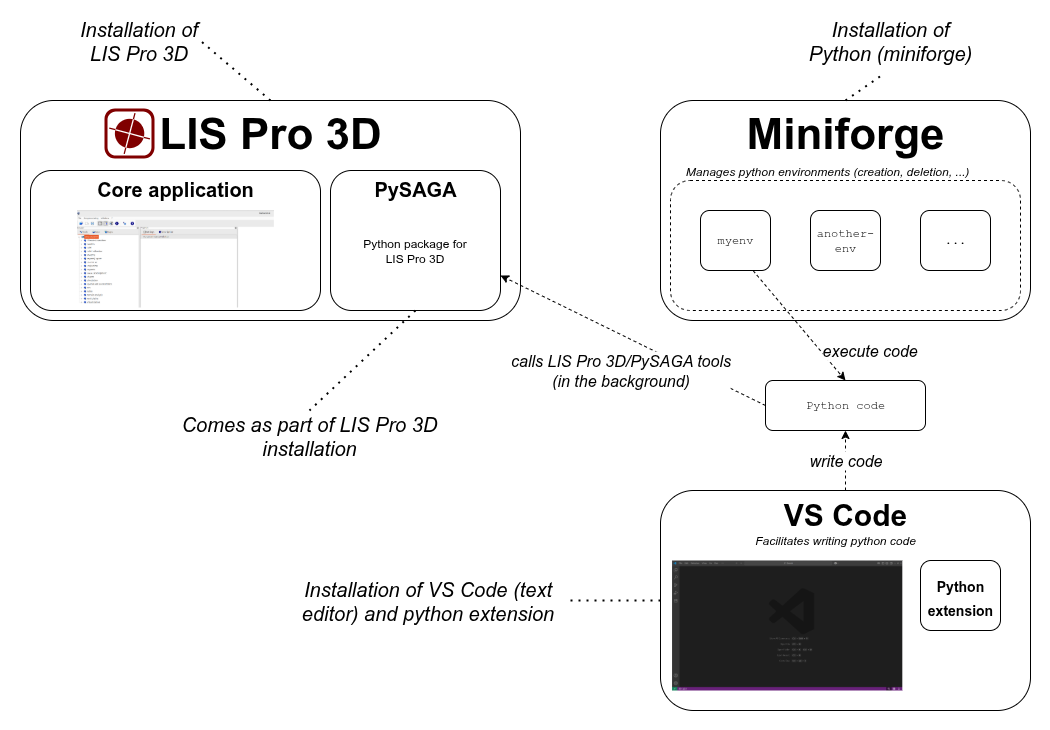
The steps required to seamlessly integrate LIS Pro 3D with Python are described below.
Step 1: Install LIS Pro 3D
Step 1.1: Run the LIS Pro 3D Installer
Navigate to the folder where you downloaded the LIS Pro 3D installer, then start the installation by double-clicking the installer:

Step 1.2
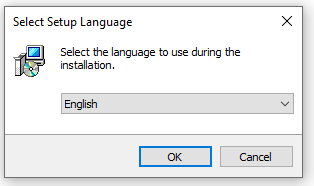
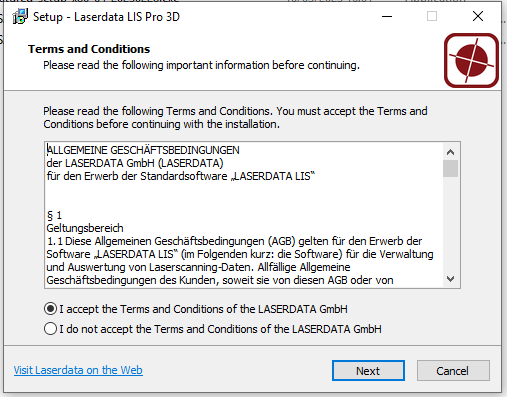
Step 1.3
Please remember the exact installation path (C:\Program Files\Laserdata\LIS Pro 3D). This path will be required later in the project configuration file so that Python can correctly locate the PySAGA folder and invoke the LIS Pro 3D tools. It is also required to enable syntax highlighting, auto-completion, and inline documentation in VS Code (or any other IDE).
Step 1.4
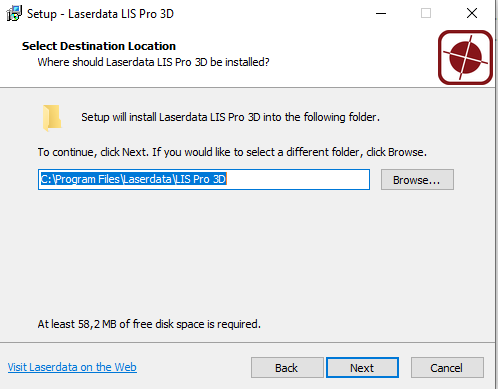
Step 1.5
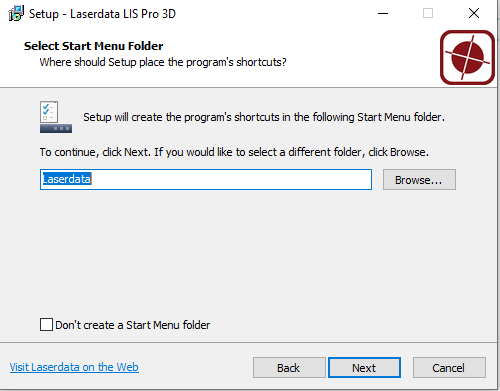
Step 1.6
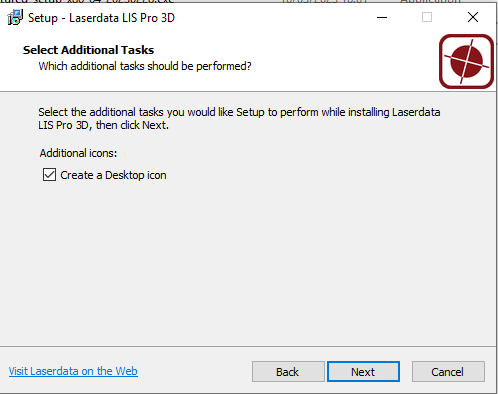
Step 1.7
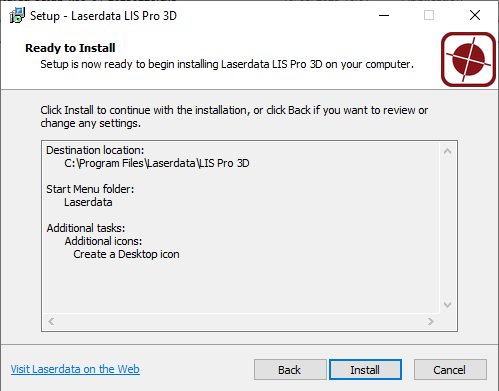
The installer creates two system environmental variables: SAGA_PATH, which points to the installation directory, and SAGA_TLB, which points to the “tools_lis” folder within that directory. The latter enables our Python scripts to locate the LIS Pro 3D tools.
Step 2: Install Microsoft Visual Studio Code
Microsoft Visual Studio Code (VS Code) is a free, lightweight source code editor developed by Microsoft for Windows, Linux, and macOS. In this tutorial, we will use it to write, test, and run our Python code.
VS Code provides a powerful and highly customizable development environment with features such as syntax highlighting, intelligent code completion, integrated debugging, and built-in terminal support. It also offers a rich ecosystem of extensions for a wide variety of programming languages and frameworks.
Thanks to its flexibility, performance, and extensive extension library, VS Code has become one of the most widely used code editors for modern software development.
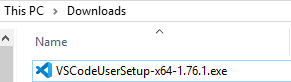
Go to: https://code.visualstudio.com/download and download the appropriate version of VSCode.
In our example: User Installer x64
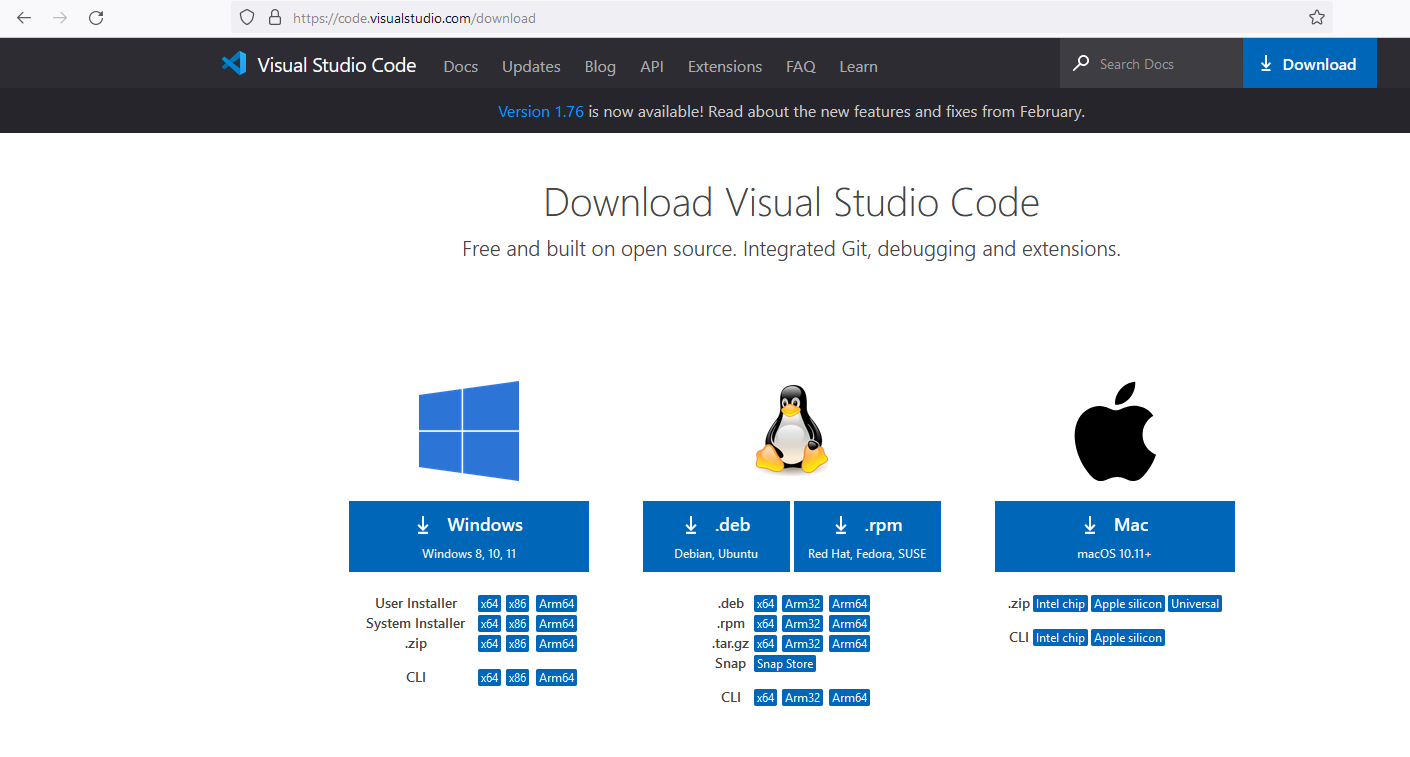
Execute Installer
Follow the installation wizard and accept the default settings.
Step 3: Install the Python Extension for VS Code
We will install the Python extension for VS Code, which provides essential support for writing and running Python code. It enables VS Code to interpret Python scripts, provides syntax highlighting for improved readability, and offers features such as auto-completion for a more efficient coding experience.
To install the extension:
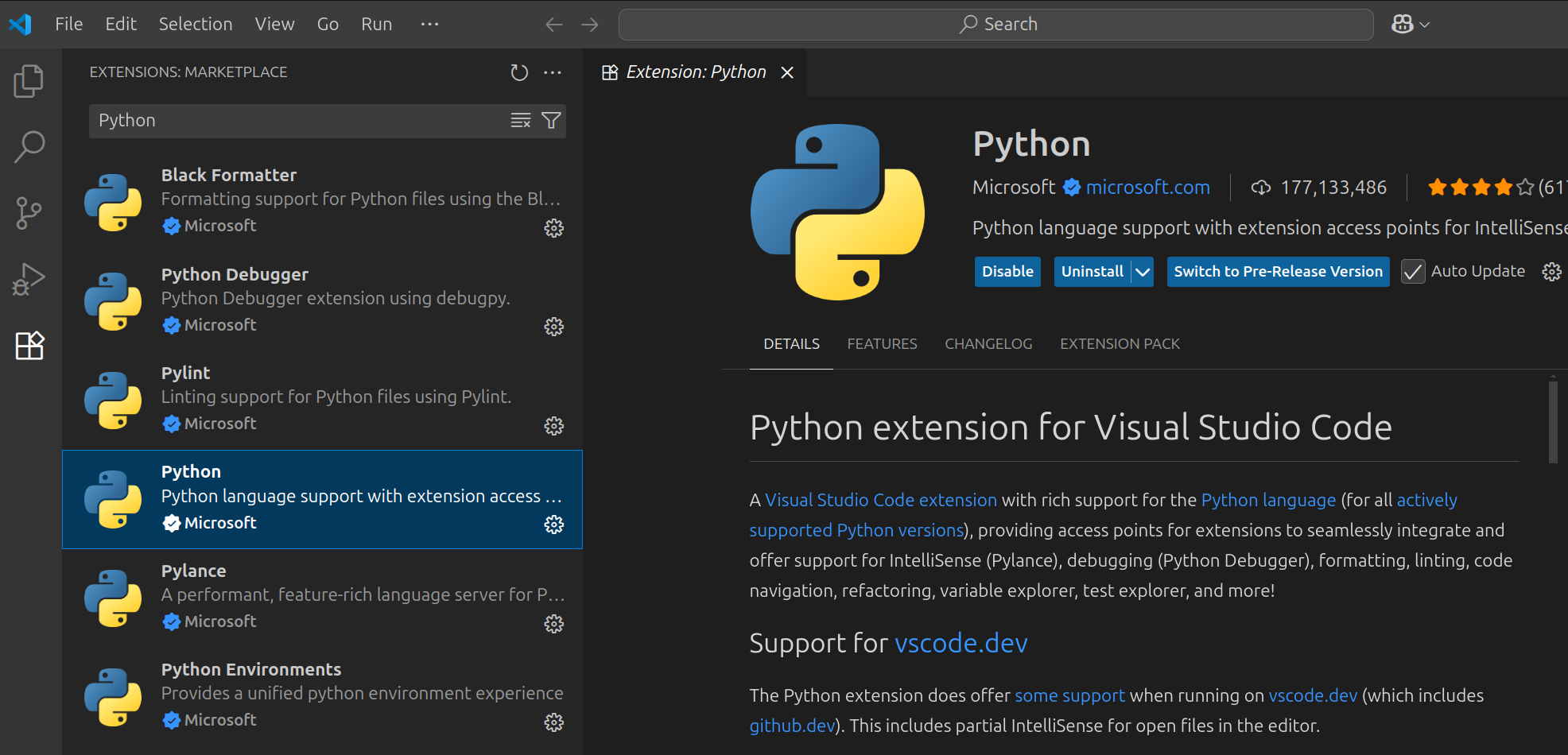
- In VS Code, click on the Extensions icon in the left-hand panel (the icon with four squares).
- In the search bar, type “Python” and select the extension named “Python” published by Microsoft. Make sure to choose the correct extension.
- Click “Install” (in the screenshot below, the extension is already installed and therefore only the options to disable or uninstall it are shown).
Step 4: Install Miniforge
We will use Python together with a package manager to simplify the management of installed Python packages and avoid conflicts with other Python installations that may already exist on your computer. This approach improves the reliability and usability of the Python environment.
The package manager used in this tutorial is conda, which is provided by the Miniforge installer. Miniforge is a minimal conda installer that includes only the essential components required to run conda.
Conda is an open-source package and environment management system that allows you to install, manage, and isolate different versions of software packages and their dependencies. It is widely used in scientific computing, data processing, and machine learning workflows.
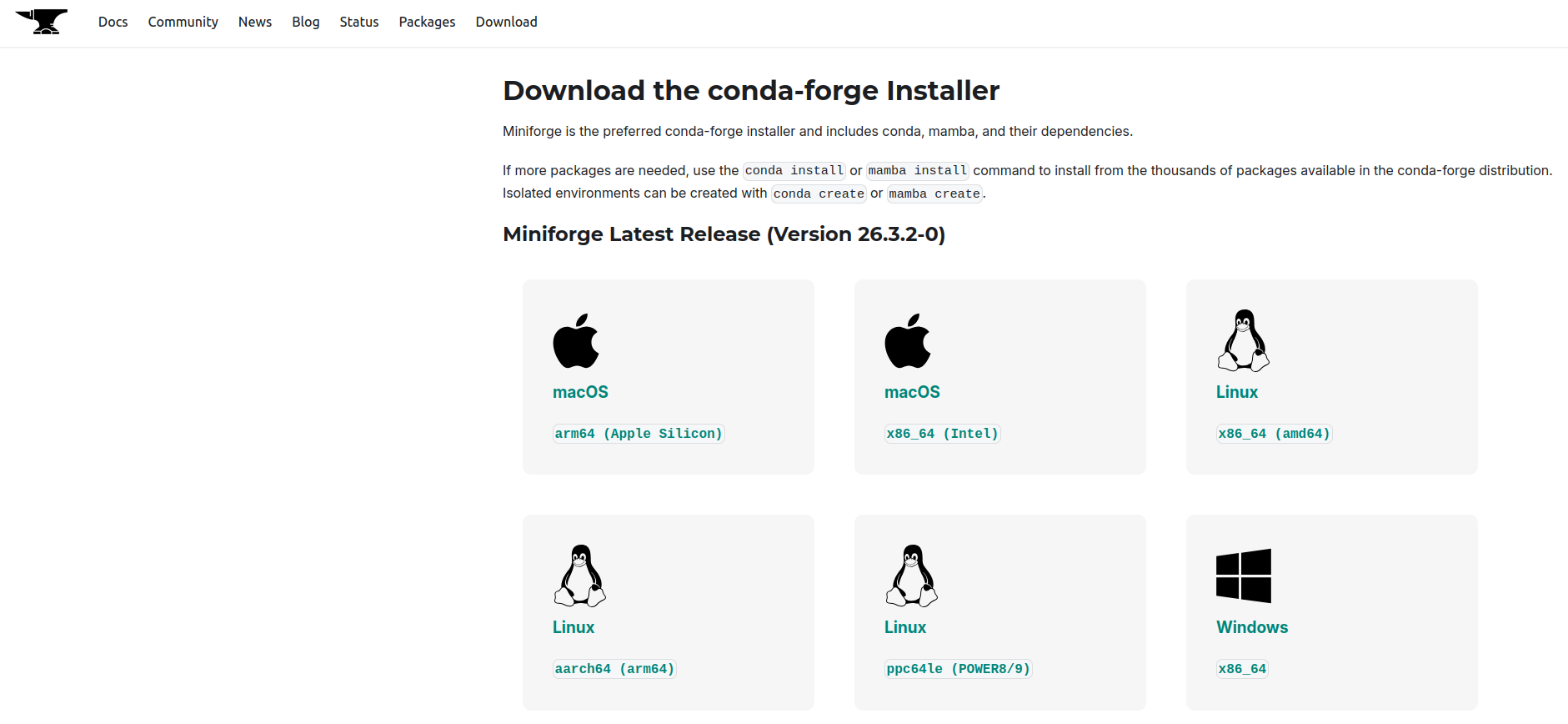
Visit https://conda-forge.org/download/. Download and install the appropriate version for your operating system:
Execute the Installer
Follow the installation wizard and accept the defaults.

Step 5: Start the Miniforge Prompt
Use Windows Search to find the Miniforge Prompt and launch it.
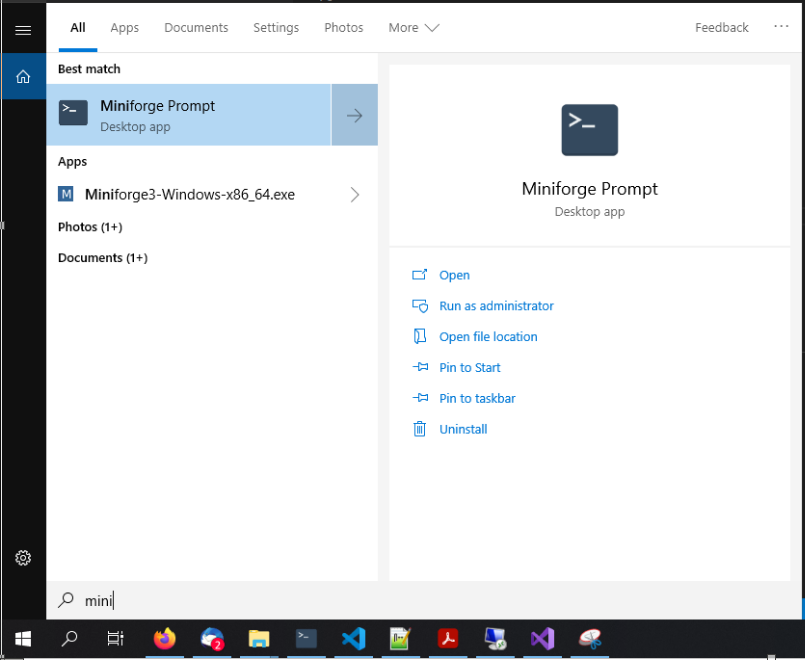
The prompt should look similar to the following:
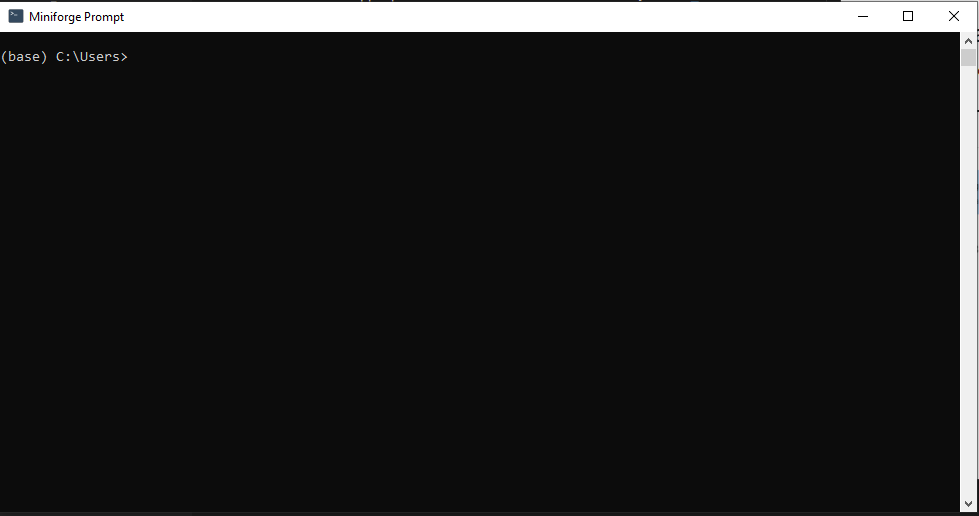
At this point, we are working in the default Miniforge (base) environment. For our purposes, we will create a separate isolated environment.
Within this isolated environment, we can install a dedicated Python version that does not interfere with other Python installations on the computer. We can then add a customized selection of Python packages required for our workflow.
Step 6: Create your own Python Environment
- Create a new conda environment, for example, myenv.
- Specify the Python version to be installed in this environment.
Choosing the correct Python Version
Currently, LIS Pro 3D is delivered with Python API support for Python 3.9, Python 3.10, Python 3.11, Python 3.12, Python 3.13 and Python 3.14. If you are new to Python, we recommend choosing the latest available version for your system (typically, conda automatically selects the latest Python version for your system if not explicitly specified). However, if you want to integrate LIS Pro 3D with an existing Python environment, make sure that your Python version is supported.
In this tutorial, we will use Python 3.10.
Enter and execute the following command:
conda create -n myenv python=3.10
(Specifying the micro version, such as .12, is not required.)
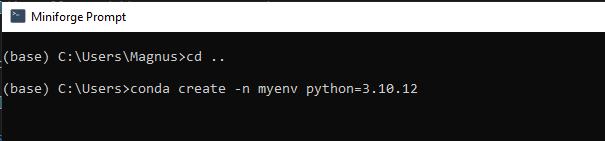
Confirm the installation by typing y and pressing ENTER.
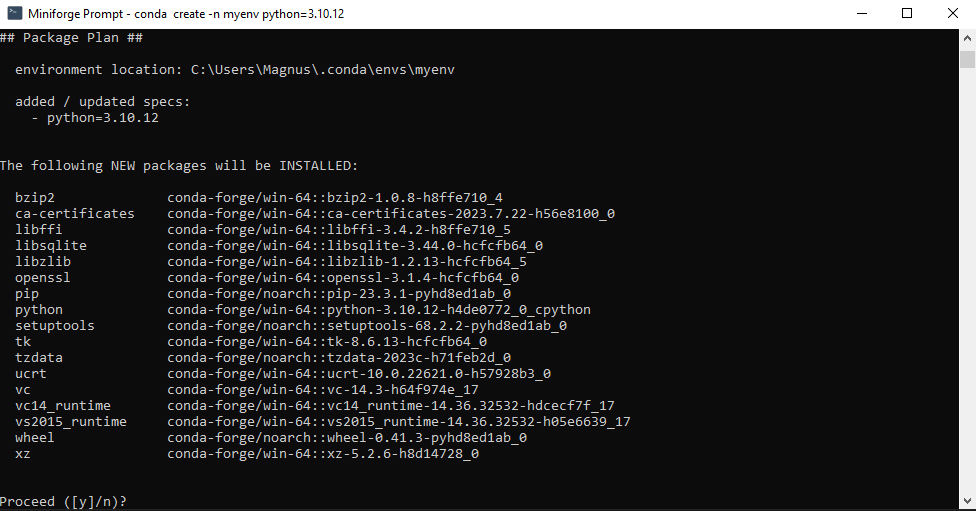
If you ever need to set up a new Python environment for LIS Pro 3D, you can easily create one by running: conda create -n <name-of-new-environment> python=<python-version>.
If you no longer need the existing myenv environment (for example, because you created a different environment for use with LIS Pro 3D), you can remove it by running: conda remove -n myenv.
This flexibility allows you to maintain separate, isolated Python environments for different projects without conflicts between packages or Python versions.
Step 7: Start your Python Environment
Once the environment has been created successfully, activate it by entering: conda activate myenv (Replace “myenv” with the name you chose for your conda Python environment).

The (myenv) prefix shown in each command prompt line indicates that you are currently working in your own environment. By entering conda deactivate, you can return to the default (base) environment.
Note that you can create and maintain multiple Python environments on the same machine. Although this may initially seem unnecessary or even confusing, the ability to use different Python versions and package configurations in separate, isolated environments is one of the key advantages of environment management.
Environments allow you to easily switch between different Python versions and sets of installed packages on the same computer. You can create new environments with the latest Python versions or remove environments that are no longer required.
Step 8: Get Syntax Highlighting and Auto-Completion for PySAGA in VS Code
Finally, we will add the location of the PySAGA package (i.e., the installation path identified in step 1.3) to the settings of the VS Code Python extension. This enables features such as syntax highlighting and auto-completion.
Although this step is not required to run LIS Pro 3D tools with Python, we strongly recommend completing it to improve the overall development experience.
In VS Code, open the user settings by pressing CTRL + SHIFT + P and typing “user settings”. From the displayed suggestions, select “Settings: Open User Settings (JSON)”.

Add the following entries to the settings.json file, replacing the path with your LIS Pro 3D installation path, and save the changes:
"python.analysis.extraPaths": ["C:/Program Files/Laserdata/LIS Pro 3D"],
"python.autoComplete.extraPaths": ["C:/Program Files/Laserdata/LIS Pro 3D"],
Afterwards, the settings.json should look similar to the following:
{
    // other configuration rules, which have already been there before:
    // (these may look completely different on your machine!)
    "window.autoDetectColorScheme": true,
    "workbench.preferredLightColorTheme": "Dark 2026",
    "python.defaultInterpreterPath": "C:\\Users\\laser\\miniforge3\\python.exe",

    // the LIS Pro 3D-specific entries we just added:
    "python.analysis.extraPaths": ["C:/Program Files/Laserdata/LIS Pro 3D"],
    "python.autoComplete.extraPaths": ["C:/Program Files/Laserdata/LIS Pro 3D"],
}Make sure that each entry is followed by a comma; otherwise, the file will contain a syntax error.
Step 9: Verify the Python Integration
- In the Miniforge Prompt, make sure that the
myenvenvironment is active:
C:\Users\laser> conda activate myenvThe command prompt should now look similar to this (environment name prepended in brackets (myenv)):
(myenv) C:\Users\laser>- From the Miniforge Prompt, start the Python interpreter by typing
pythonand pressing ENTER:
(myenv) C:\Users\laser> pythonYou are know inside the python interpreter (indicated by >>>):
(myenv) C:\Users\laser> python
Python 3.10.12 | packaged by conda-forge | (main, Jun 23 2023, 22:34:57) [MSC v.1936 64 bit (AMD64)] on win32
Type "help", "copyright", "credits" or "license" for more information.
>>>- Inside the Python interpreter (indicated by the
>>>prompt) execute the following command sequence exactly as shown below:
>>> import os
>>> import sys
>>> os.environ["SAGA_PATH"] = r"C:\Program Files\Laserdata\LIS Pro 3D"
>>> sys.path.insert(0, os.environ["SAGA_PATH"])
We here import the modules os (1) and sys (2), create an environment variable SAGA_PATH (3) and add this variable to the system path (4), This is necessary so that Python can find and execute LIS Pro 3D tools.
If you used a different installation path, update the SAGA_PATH variable accordingly to match your custom path (i.e., the installation path from step 1.3). By adding SAGA_PATH as the first entry in the system environment PATH variable, we ensure that Python can correctly locate the PySAGA package within that folder.
- Now, in the same python interpreter, execute the following two commands to verify that the installation was successfull:
>>> from PySAGA.tools import lis_tools
>>> lis_tools.About_LIS_Pro_3D()
We here (1) import the lis_tools tool library that contains all of LIS Pro 3D’s tools and (2) execute the lis_tools.About_LIS_Pro_3D tool. If the tool prints the following information and executes without errors, you have successfully installed LIS Pro 3D with Python support.
LIS Pro 3D
[2026-05-16-3000]

Copyrights (c) 2007-2026 by LASERDATA GmbH
Version 2026.02
Release 8888 (2026-03-21)

Licensed packages:
LIS Pro 3D
City Modeller
Forestry
Geology
Road Modeller

Licensed to:
Max Mustermann
Amt fuer Mustererkennung
Musterstr. 1
1111 Musterstadt
Musterland

This is a perpetual version (GUI).
__________________________________________

Contact:
LASERDATA GmbH
Technikerstr. 21a
6020 Innsbruck
Austria

www.laserdata.at

__________________________________________
If you encounter an error similar to the one shown below, review your installation steps or contact user support for assistance.
Python 3.10.12 | packaged by conda-forge | (main, Jun 23 2023, 22:34:57) [MSC v.1936 64 bit (AMD64)] on win32
Type "help", "copyright", "credits" or "license" for more information.
>>> from PySAGA.tools import lis_tools
Traceback (most recent call last):
  File "<stdin>", line 1, in <module>
ModuleNotFoundError: No module named 'PySAGA'
Finally, exit the Python interpreter by entering:
>>> exit()